 QuickMovie
How Video Editing Works in a Browser, No Install
QuickMovie Team · 2026-10-10
Video editing used to belong to dedicated programs, but today a web browser alone can handle cutting, subtitles and MP4 export. This article explains how that is possible and what it means for privacy and speed.
The browser processes the video itself
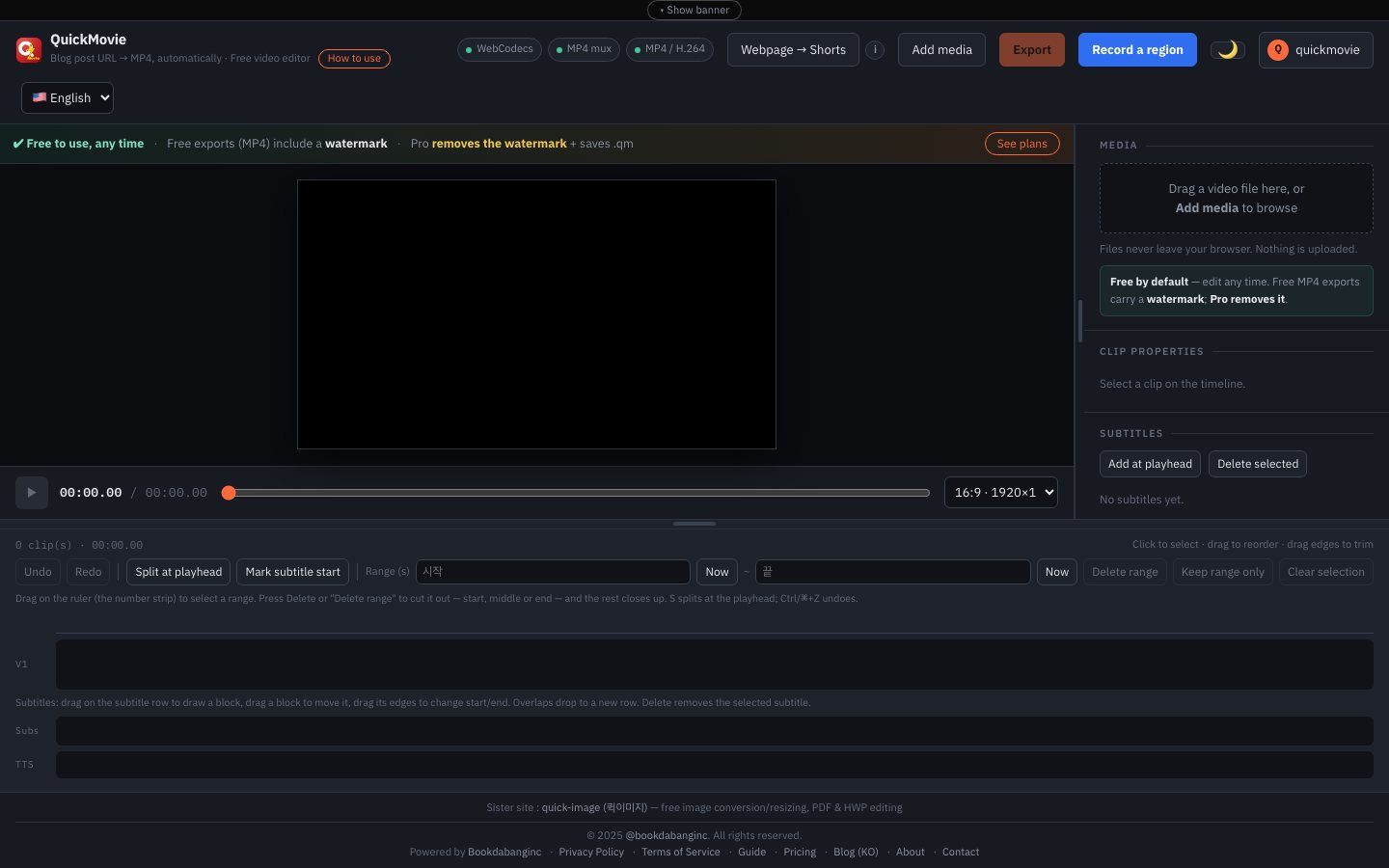
Modern browsers include features to encode and decode video and audio (WebCodecs). A web page's JavaScript can use the device's video hardware to compress and decompress video quickly. Producing the MP4 happens on your device, not on a server.
Files are not uploaded
With this design, video, photo and audio files are processed only in browser memory. There is nothing to send to another server, so upload and download time disappears and there is less worry about sensitive footage remaining elsewhere. Editing stays fast even on a slow connection.
It has limits too
- It depends on device performance: very long or high-resolution videos use a lot of memory and can be slow.
- Browsers differ: video encoding works best in Chrome or Edge on a PC; some browsers may only allow editing and preview.
- Closing or refreshing the tab loses your work. Save important work as a project file (.qm).
What kind of work suits it
It is enough for light work: cutting short videos, adding subtitles, changing speed and simple joining. Heavy work such as complex compositing, color grading or editing feature-length footage is better in dedicated software. Choose the tool that fits the job.
Security benefits
Installed programs ask for extra permissions, but a browser runs in a sandbox where only the files you choose can be accessed. There is nothing to download and install, so there is no risk of installing malware.
Checking for yourself that files don't leave
An explanation may not be enough to trust. Open your browser's developer tools (F12) network tab, load a video and edit; you will see no requests that send the video file. The requests you do see are fonts and libraries and small requests that check login status. Features that need an outside server, like voice cloning, are the exception and are announced on screen before use.
Common mistakes
- Closing or refreshing the tab mid-work and losing edits → save important work as .qm.
- Loading one very long video so the browser slows → trim to the needed section first.
- Trying to export in an unsupported browser → Chrome or Edge on a PC is recommended.
This article is based on the actual screens and features of the QuickMovie editor. Platform policies and numbers can change, so check the latest guidance before you upload.