 QuickMovie
Tips for Making Tutorial Videos by Screen Recording
QuickMovie Team · 2026-10-10
How-to videos, lectures and bug reports are mostly made by screen recording. But recording the whole screen captures a lot you don't need and makes text too small to read. Choosing the recording area and tidying up afterwards gives a much cleaner result.
Prepare before recording
- Turn off notifications: messages and email alerts expose private information and break the flow.
- Tidy the desktop and tabs: close unneeded icons and tabs so the eye doesn't wander.
- Make text bigger: viewers watch on small screens. Zoom the browser or lower the resolution.
- Plan the order: a short note of what to show and in which order keeps you from rambling.
Record only the area you need
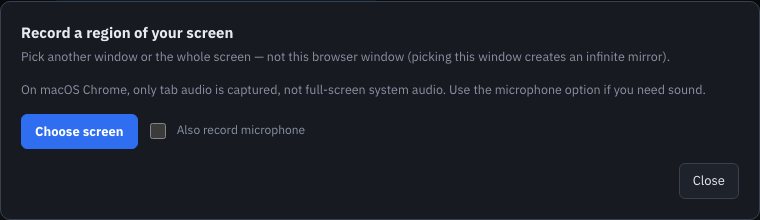
QuickMovie's region recording lets you share a screen or window and then pick just the rectangle to record. Choosing only the window you're explaining focuses attention and tends to make the file smaller. You can't change the region while recording, so set its size beforehand.
Recording sound
You can record system sound and microphone together. In a noisy room, recording the voice separately later is cleaner. Some computers can't capture system sound, so do a short test recording first.
Use pause
When you make a mistake or need to think, pause the recording and continue. The paused part is left out of the result, so you rarely need to start over.
Tidy up afterwards
- Cut the clutter at the start and end.
- Cut or speed up stretches with no speech or just loading.
- Add a subtitle title at each key step to show structure.
- Play it through and check nothing private is visible.
Record long sessions in parts
A browser recording uses a lot of memory, so saving in pieces of roughly 20–30 minutes is safer than one very long take. Splitting by topic also helps viewers find the part they need.
The benefit of region recording
Specifying only the window you explain, instead of the full screen, makes it clear where viewers should look, and a smaller area tends to produce a smaller file. It also reduces the chance of notifications or other windows with private information being captured.
Common mistakes
- Choosing this browser window itself as the target, producing an endless mirror effect
- Not deciding the region size before starting and trying to change it mid-recording (you can't)
- Not checking with a test recording whether microphone or system sound is captured
This article is based on the actual screens and features of the QuickMovie editor. Platform policies and numbers can change, so check the latest guidance before you upload.