 QuickMovie
Video Cut Editing Basics: Trim and Join
QuickMovie Team · 2026-10-10
Half of video editing is not "what to keep" but "what to remove". Cut editing is the most basic task: trimming away unneeded parts and joining what remains naturally. It needs no advanced skills, but a few principles make results much better.
Terms: in point, out point, cut
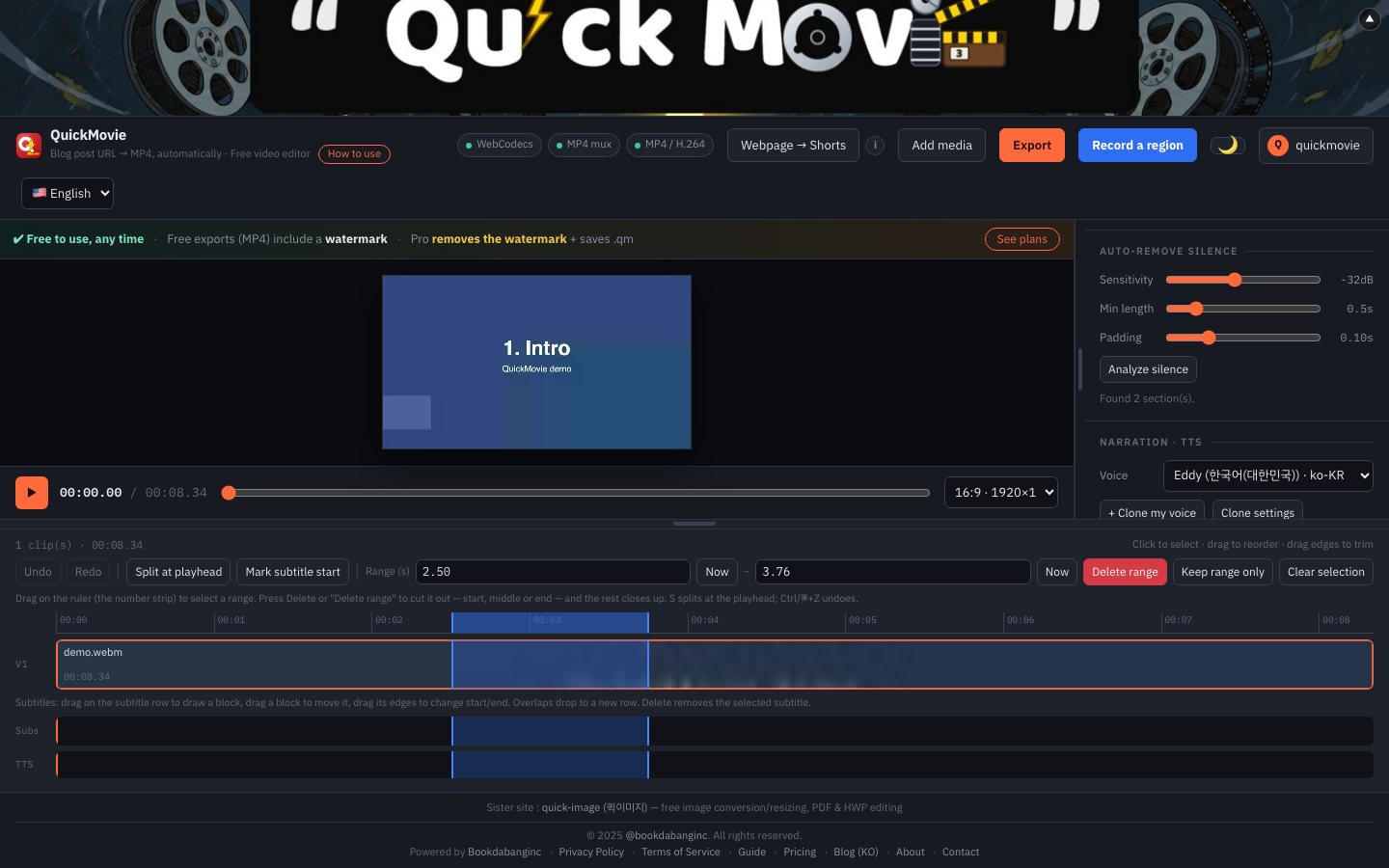
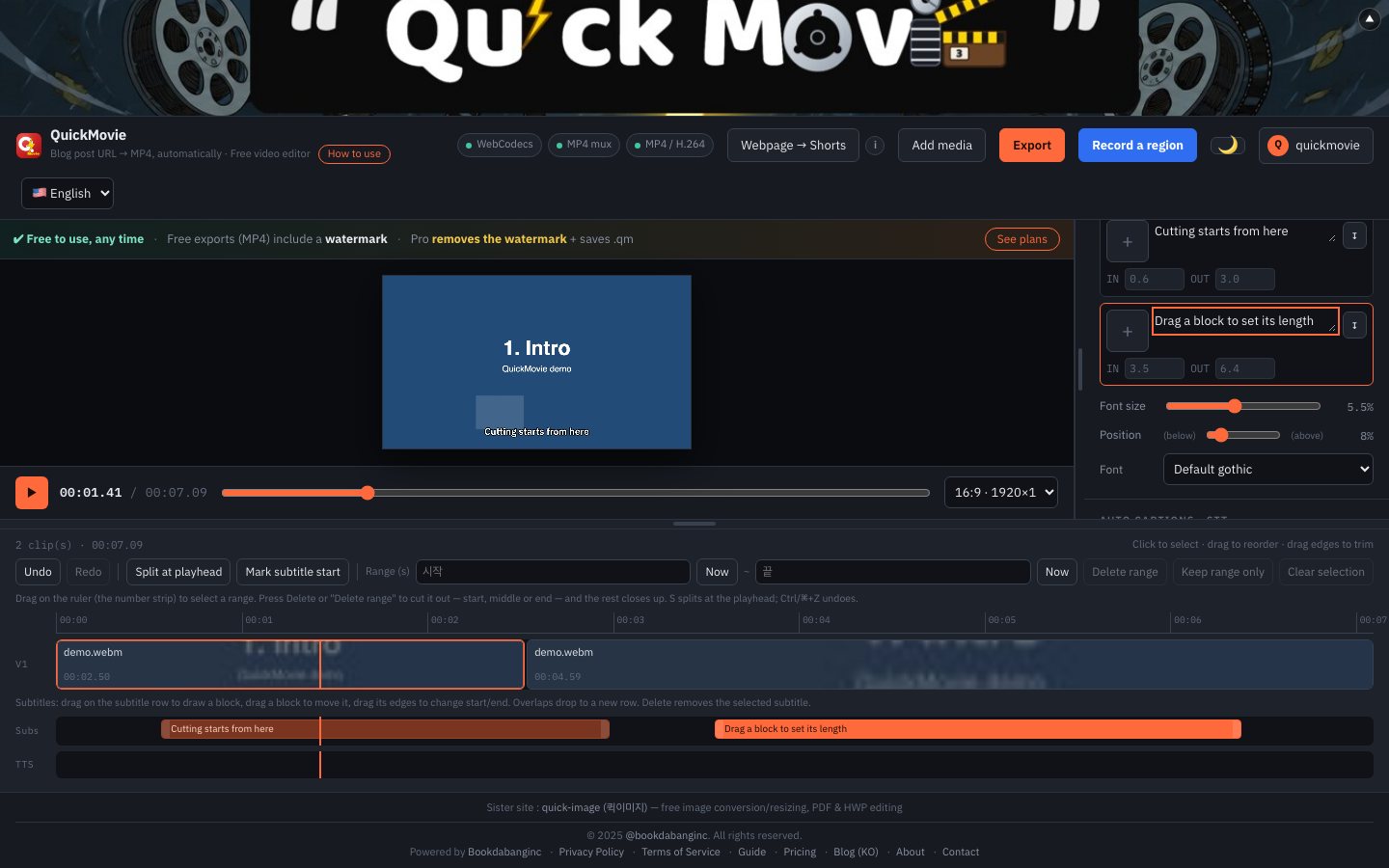
The in point is where the part you use begins in a clip; the out point is where it ends. Once both are set, everything outside is unused. A cut is splitting a clip or removing a range. In QuickMovie, drag across the timeline ruler to pick a range and delete it: the beginning, middle or end all work the same way, and the rest closes up automatically.
Trim the start and end first
Often the real content begins long after recording started. Cut the start so the main point comes right away, and end just after the last word. That alone makes a video noticeably tighter.
Reducing gaps between words (jump cuts)
In talking videos, jump cuts remove breaths and fillers like "um". Cutting too tightly leaves no room to breathe and becomes tiring, so keep a very short margin (0.1–0.3 s) between sentences. The silence analysis feature can find the quiet parts in one pass.
Choosing where to cut
Cutting in the middle of continuous sound feels abrupt. Cut at a moment of quiet after speech ends or when motion stops. Check the sound on both sides of the cut point.
Don't fear undo
If you cut wrongly, Undo (Ctrl/⌘+Z) takes you back. You can also drag a clip's edge outward to restore what you cut. Cut generously first, then refine.
Summary of the workflow
- Skim everything once and mark what to keep.
- Cut the start, end and big unneeded ranges first.
- Tidy gaps between words and repeated parts.
- Play from start to finish and check that no seam feels awkward.
Working through a long recording
A long explanation recorded in one go usually grows from preparation at the start, gaps between words, repeated explanations and a trailing wrap-up. Cutting those four in order shrinks the length noticeably. Rather than cutting everything at once, cut the big chunks first, play it back, and refine what remains — it causes fewer mistakes.
Common mistakes
- Cutting too tight: speech sounds rushed. Leave a short margin between sentences.
- Cutting mid-sound: the voice seems to be chopped. Cut just after speech ends.
- Skipping the check: play each seam once to catch awkward spots.
- Fear of overwriting the original: undo and dragging clip edges let you restore, so try freely.
Quick answers
How do I cut out the middle of a video?
Drag across the ruler (the number strip) to select the part you don't want, then press Delete range. The range disappears and everything after it closes up, so there is no gap. You can do this for the start, the middle or the end in exactly the same way.
How do I keep only one part of a video?
Select that part on the ruler and press Keep range only. Everything outside the selection is removed.
What is cut editing?
Cut editing is the most basic kind of video editing: removing parts you don't need and joining the rest. It doesn't involve effects or color work, just deciding what stays and in what order.
Can I cut less than one second?
Yes. Type exact times, with decimals, into the Range (s) boxes (for example 3.20 to 3.55), or play to a position and press Now to fill them. Very short cuts can sound abrupt, so leave a little margin around speech.
How do I split one clip into two?
Move the playhead to the spot and press the S key (or the split button). You can then delete, reorder or change the speed of each piece separately.
This article is based on the actual screens and features of the QuickMovie editor. Platform policies and numbers can change, so check the latest guidance before you upload.