 QuickMovie
Using Video Speed: 1.5×, 2× and 3×
QuickMovie Team · 2026-10-10
Changing speed is a simple way to change both the length and the mood of a video: skip dull parts quickly or show a short moment slowly. But faster is not always better, so choosing the right multiplier matters.
What each speed is for
- 1.25–1.5×: slow lectures or explanations. The sound stays in a natural range.
- 2×: waiting stretches in screen recordings, or repetitive work you only need to show.
- 3× and above: compressing a process such as loading, assembly or cleaning. Speech becomes hard to follow, so music is usually added instead.
- 0.5×: showing a short action slowly. Too few frames can look choppy.
What happens to the sound
Raising the speed makes speech faster and also raises the overall pitch. Up to 1.5× is mostly natural, but beyond 2× it becomes hard to understand. For videos where speech matters keep the speed low; for videos that just show a process, mute the sound or replace it with music.
Speed and subtitles
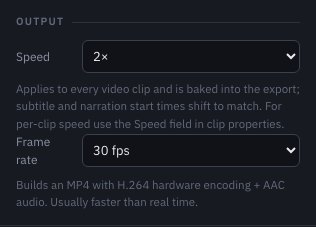
Changing speed changes the length of the video, so when subtitles appear must change too. When you change the overall speed in QuickMovie, subtitle and narration start times move with the scenes. Even so, play the whole video at the end to check nothing drifted.
Applying a different speed to part of the video
To speed up only a section, first split it into its own clip and then set that clip's speed in clip properties. Using normal speed for important parts and fast speed for dull parts gives the video rhythm.
Speed by feel, and applying it per section
For explanations, 1.25–1.5× is generally natural, while beyond 2× speech becomes hard to follow. In screen recordings, waiting stretches can be skipped at 3–4× without losing meaning. Different speeds per section bring a video to life — split the clips first, then set the speed per section.
Watch out: don't make it too short
The faster the speed, the shorter the video. If it becomes too short to follow, lower the speed or leave normal-speed stretches before and after fast parts to keep context.
Common mistakes
- Making a speech-heavy video 2× or faster so it's hard to follow
- Not checking subtitle timing after changing speed
- Missing that slow speeds such as 0.5× look choppy for lack of frames
How long will my video be at 1.5× or 2×?
The new length is simply the original length divided by the speed. A few examples:
| Original length | 1.25× | 1.5× | 2× | 3× |
|---|---|---|---|---|
| 10 minutes | 8:00 | 6:40 | 5:00 | 3:20 |
| 33 minutes | 26:24 | 22:00 | 16:30 | 11:00 |
| 1 hour | 48:00 | 40:00 | 30:00 | 20:00 |
| 1 hour 48 minutes | 1:26:24 | 1:12:00 | 54:00 | 36:00 |
| 2 hours | 1:36:00 | 1:20:00 | 1:00:00 | 40:00 |
So a 33-minute video at 1.5× takes 22 minutes, and a 2-hour video at 1.25× takes 1 hour 36 minutes.
How to speed up a video in QuickMovie
- Add the video, then select the clip you want to change.
- Choose a speed in the clip's Speed box (0.25× to 4×), or use the output section's playback speed to change every clip at once.
- Play it back. Check that speech is still clear and that subtitle timings still match, because both shift when the speed changes.
- Export as MP4.
To speed up only one section, split the clip first (press S at the start and end of the section) and change the speed of just that piece.
Slow motion
Speeds below 1× (such as 0.5×) stretch the video and make it longer. Footage shot at a normal frame rate can look a little choppy when slowed a lot, because there are no extra frames to fill the gaps. Use slow motion for short, important moments rather than whole clips.
This article is based on the actual screens and features of the QuickMovie editor. Platform policies and numbers can change, so check the latest guidance before you upload.