 QuickMovie
Make Video Smoother with Automatic Silence Removal
QuickMovie Team · 2026-10-10
When you record a lecture, explanation or vlog yourself, pauses between words and hesitations are captured as is. Shortening these gaps makes the same content come across faster and clearer. Silence removal is a feature that helps do this automatically.
Videos that benefit
- Lectures, explanations and interviews with a speaker
- Tutorials with a voice over a screen recording
- Vlogs recorded long in one take
It doesn't suit videos centered on music or scenery, or scenes where silence is intentional.
How it works
It checks the sound level in small time steps and treats stretches where it stays below a threshold for a minimum time as silence. You can adjust the threshold (how quiet counts as silence) and the minimum length (how long it must last before it is cut).
Setting tips
- Don't set the threshold too high: quiet voices or ends of sentences may be cut off.
- Minimum length around 0.4–0.8 s: too short and even breaths get cut so speech sounds rushed.
- Leave padding: a little margin before and after each cut keeps the start and end of words natural.
What to check before applying
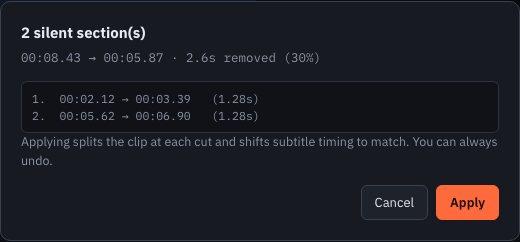
The result shows beforehand how many ranges will be cut and how many seconds will be saved. Look at the list to confirm it isn't cutting too much, then apply. You can still return to the original with undo after applying.
After applying
- Play from start to finish and check nothing is awkwardly cut off.
- If there are subtitles, check their timing moved along.
- Undo or hand-tune the parts that sound rushed.
A test: cutting 30% from an 8-second video
In an 8-second test video with pauses between speech, two silent ranges were found and about 2.6 seconds (30%) were saved. It was a short test, but because the list of ranges and the time saved are shown beforehand, it was easy to judge before applying. On real lectures the result varies a lot with settings, so start with a conservative threshold, listen to the result and adjust a little at a time.
Caution
Automatic analysis isn't perfect. In videos with background noise it may not find silent parts correctly. Always listen to the result yourself.
Common mistakes
- Setting the minimum length too short, cutting even breaths so speech becomes rushed
- Seeing no effect on videos with background music because there is almost no silence
- Exporting right after applying without checking
This article is based on the actual screens and features of the QuickMovie editor. Platform policies and numbers can change, so check the latest guidance before you upload.